
Customize and download STL files for 3D printing
Sign in to unlock the full model library, all parameters, and the ability to save and download your custom parts.
Parametric 3D Models, Built for 3D Printing
Customize every dimension, download the STL, and print. No CAD experience required.
What Are Parametric Models?
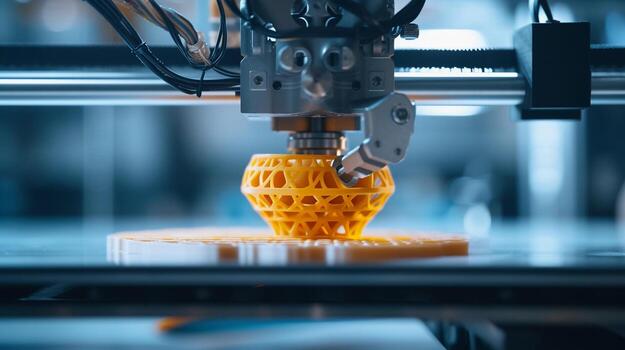
Every model on this platform is parametric, meaning its shape is driven by adjustable parameters rather than fixed geometry. Instead of downloading a static file and hoping it fits, you set the dimensions yourself. Change the diameter, wall thickness, height, fillet radius, or thread size and the model regenerates instantly. What you see in the 3D viewer is exactly what you get in the downloaded STL file, ready to slice and print.
Conventions and Units
All dimensions are in millimeters. This is the standard unit for 3D printing. When you set a parameter to 30, the resulting feature will be 30 mm in the printed part. Thread sizes follow the ISO metric standard (M3, M4, M5, etc.) so they mate correctly with standard bolts and inserts. Fillet and chamfer values represent the radius or distance in millimeters. The STL files are exported as binary STL in millimeter scale, compatible with every major slicer including Cura, PrusaSlicer, Bambu Studio, and OrcaSlicer.
Three Ways to Use It
The Demo tier lets you try models with a handful of preset values per parameter, no account needed. With a free account you unlock the full model library and significantly more values per parameter, giving you thousands of possible combinations. You can also save parts and come back to them later. The paid tier removes dropdowns entirely and replaces them with free-input fields, letting you type any value you want for complete control over every measurement. It also unlocks additional parameters on select models that are not available on the other tiers.
Model Info at a Glance
Every model displays live metadata so you know exactly what you are getting before you download. The bounding box dimensions (X, Y, Z) are shown in millimeters, telling you the exact footprint of the part. This is useful for checking whether it fits your print bed. The volume is displayed in cubic centimeters, giving you a quick estimate of how much filament or resin the print will consume. The estimated file size tells you how large the download will be, and the face count shows the number of triangles that make up the mesh.
The face count directly affects how long the model takes to load and render in the 3D viewer, because the stlkit processor has to calculate the position and shading of every single triangle. To keep the preview fast and responsive, the viewer uses a lower-resolution version of the model with fewer faces. The STL file you actually download has significantly more faces, producing much smoother curves and finer detail, exactly what you want for a high-quality print.
Save Your Parts
Once you have dialed in the parameters the way you want them, you can save the model as your own part. Each saved part remembers the exact parameter values you chose, so you can come back to it at any time without having to reconfigure everything from scratch. Give it a name, and it shows up in your personal parts list on the dashboard. This is especially useful when you are iterating on a design. Adjust a dimension, save a new version, print it, and compare. You can keep as many saved parts as you like, across any model in the library.
STLKit
3D PARAMETRIC PLATFORM
© 2026 STLKit. All rights reserved.